

Yes: an iPhone can pair with a PS5 DualSense controller over Bluetooth in under a minute, no cables or extra apps required for the pairing step itself. Hold the Create button and the PS button together until the light bar flashes rapidly, then pick “DualSense Wireless Controller” from the phone’s Bluetooth settings. That single gesture is how you connect a PS5 controller to an iPhone, whether the plan is streaming a PS5 through PS Remote Play, playing a controller-compatible App Store game, or just testing the hardware on a new phone.
What you need before pairing
Three things matter here: a DualSense controller with some charge left, an iPhone on a reasonably current version of iOS, and Bluetooth turned on. Apple’s support page for wireless game controllers lists iOS 16 or later as the current baseline for full controller support, checked September 2026. Sony’s own DualSense pairing instructions separately cite iOS 14.5 as the version when Bluetooth support for the controller first arrived. In practice the two numbers rarely matter, since almost any iPhone still receiving updates already clears both.
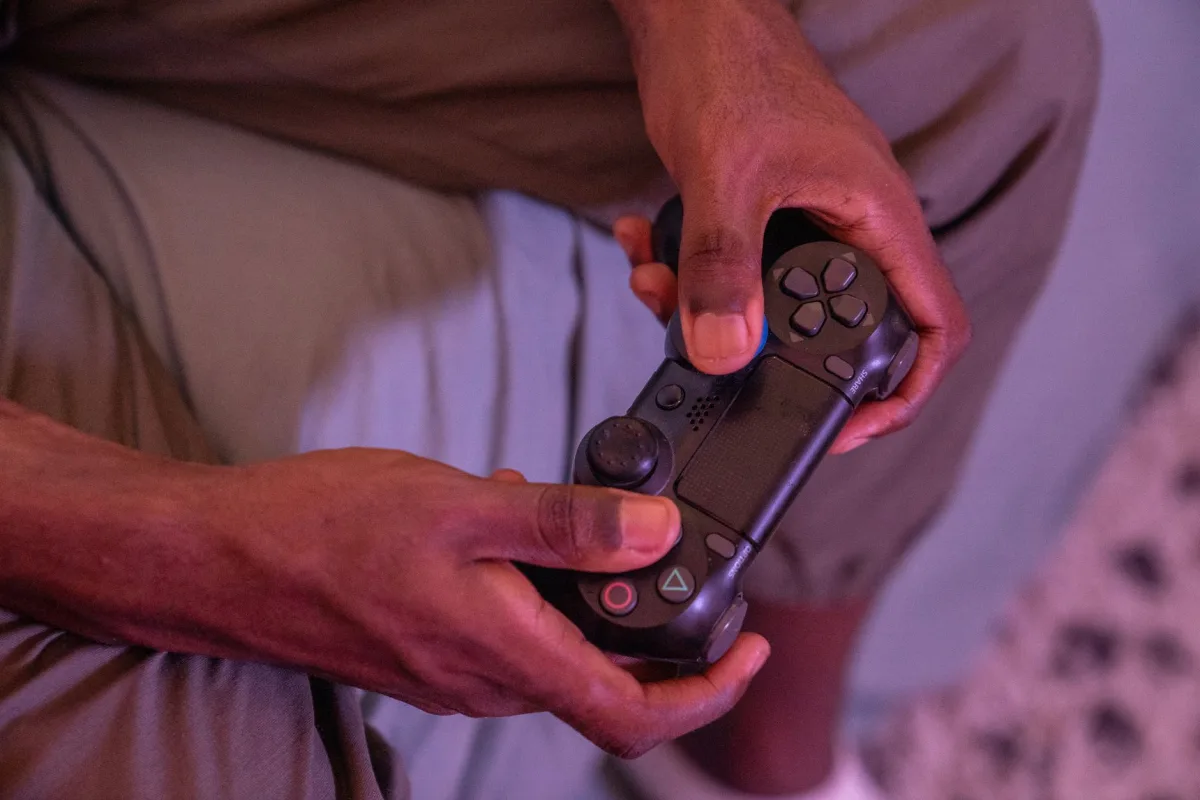
- A PS5 DualSense controller. A DualSense Edge pairs the same way.
- An iPhone with Bluetooth enabled and no other device currently holding the controller’s connection.
- A few minutes of charge in the controller. A dead battery will not enter pairing mode.
Put the DualSense controller into pairing mode
Sony’s support documentation describes the same pairing gesture for every device the controller connects to, including Mac, PC, Android and iPhone.
- Make sure the controller’s player-indicator light is off. If it is lit, press and hold the PS button until it turns off.
- Unplug any USB cable connected to the controller.
- While holding the Create button at the top-left of the touchpad, also press and hold the PS button. Keep both held until the light bar starts flashing rapidly. That flash means the controller is now discoverable over Bluetooth.
How to Connect a PS5 Controller to an iPhone
With the light bar flashing, switch to the phone and finish the pairing from there.
- Open Settings on the iPhone and tap Bluetooth.
- Turn Bluetooth on if it is not already active.
- Under “Other Devices,” tap “DualSense Wireless Controller” as soon as it appears in the list.
- Wait a couple of seconds. According to Sony’s documentation, the light bar blinks once more and then the small player-indicator light comes on, which signals that pairing finished.
The iPhone’s Bluetooth settings screen will now show the controller’s name with “Connected” underneath it. That label, plus a steady player-indicator light on the controller itself, are the two signs the pairing succeeded.
OS version requirements, and why they differ
Three separate version numbers apply here depending on what the controller is doing, each from a different source, so it is worth knowing which one governs a given use case.
| Use case | Minimum OS | Source |
|---|---|---|
| Pair DualSense as a generic Bluetooth controller on iPhone | iOS 14.5 (Sony), iOS 16 per Apple’s current published baseline | Sony and Apple support pages |
| Run the PS Remote Play app | iOS 15 or later | App Store listing |
| Pair DualSense on an Android phone | Android 12 or later | Sony support page |
Stream real PS5 games with PS Remote Play
PS Remote Play is Sony’s free app for streaming a PS5’s own picture and sound to a phone over the internet, with the DualSense supplying the controls. It needs the same PlayStation Network account signed in on both the console and the app, a PS5 (or PS4) set to allow remote connections in its own settings, and a stable connection on both ends since it is a live video stream, not a locally installed game. The App Store listing for PS Remote Play requires iOS 15 or later, a lower bar than the iOS 16 Apple now publishes for general controller support, because Remote Play handles the DualSense’s inputs inside its own app rather than relying on the system-level controller framework. Sony’s documentation also notes that some DualSense features do not carry over to mobile: adaptive trigger resistance works over Bluetooth on a phone, but haptic feedback and the controller’s built-in microphone and speaker do not function on mobile devices.
Use the controller without Remote Play
A separate group of iPhone games talks to the DualSense directly, with no PlayStation software involved. These are titles built on Apple’s own controller support, which covers a growing number of App Store games and Apple Arcade titles. Once the DualSense is paired, the simplest way to check any specific game is to open its own settings or controls menu: a game with proper controller support typically swaps its on-screen touch buttons for DualSense button icons, and the Create and options buttons often open menus that touch controls cannot reach. If a game shows no such change after pairing, it likely has no controller support at all, regardless of what the App Store listing implies.
Remap DualSense buttons on the iPhone
Apple’s own guide for connecting a game controller to iPhone puts remapping under Settings, then General, then Game Controller. Tap the DualSense’s name in that list, then tap Default Controls to change which physical button triggers which action. This remapping is system-level, but it only takes effect in apps and games that read their controls from Apple’s shared controller settings; plenty of games ship with their own separate remapping screen instead, and a few honor neither.
Disconnect the controller and switch it back to the PS5
According to Sony’s controller manual, a DualSense can remember up to four separate Bluetooth pairings at once, but it only stays actively connected to one device at a time, so switching back to the console after using it on a phone takes one extra step.
- Wired, the fast way: plug the DualSense into the PS5 with a USB-C cable and press the PS button. This reconnects the controller to the console immediately, regardless of what it was last paired to.
- Wireless: on the iPhone, open Settings, then Bluetooth, tap the “i” icon next to the controller’s name, then tap “Forget This Device.” Put the controller back into pairing mode with Create and PS held together, then select it again from the PS5’s own Bluetooth accessories menu.
Connect a PS5 controller to an Android phone instead
The physical gesture is identical on Android: hold the Create button and the PS button together until the light bar flashes rapidly. Sony’s support page lists Android 12 or later as the minimum version for both Bluetooth and USB-C connections to a DualSense, checked September 2026. From there, open the phone’s Bluetooth settings, usually under Settings, then Connected Devices, then Pair New Device, though the exact wording varies by phone maker. Select “DualSense Wireless Controller” from the list of available devices. The confirmation is the same sequence Sony describes for every platform: the light bar blinks once more, then the player-indicator light comes on. PS Remote Play on Android follows the same PlayStation Network sign-in and stable-connection requirements described above for iPhone.
Troubleshooting: the controller won’t show up or won’t stay paired
Most failed pairings trace back to one of a handful of causes.
- Forget the controller on every device it has previously paired with, then start pairing mode again. A DualSense connects to only one device at a time, so a phone, a PS5 and a PC all trying to claim it at once will fail silently.
- Recharge the controller. One that is low on battery may briefly appear in a Bluetooth list without completing the pairing.
- Turn the iPhone’s Bluetooth off and back on, or restart the phone, before trying pairing mode again.
- Keep the controller within a few feet of the phone during the first pairing attempt. Most failed first connections come down to range or interference, not a faulty controller.
- Update iOS. Older versions predate parts of Apple’s current controller support and may not show the controller at all.
This guide covers pairing and setup only. For other small-electronics and troubleshooting how-tos, browse our full article library.
Frequently asked questions
Does a PS5 controller need an internet connection to work on an iPhone?
No, not for pairing itself or for games that read the controller directly. Bluetooth pairing works with no internet connection at all. PS Remote Play is the exception, since it streams video and audio from a PS5 and needs a working connection on both the console and the phone.
Can a PS4 DualShock 4 controller connect to an iPhone the same way?
Yes, using the same Settings, then Bluetooth screen, though the DualShock 4’s pairing gesture is slightly different: hold its Share button and PS button together until the light bar flashes, rather than the DualSense’s Create button.
Why does the DualSense keep disconnecting from the iPhone?
The usual causes are a low battery, being out of Bluetooth range, or a PS5 or PC nearby reclaiming the connection, since the controller can only stay actively linked to one device at a time even when it remembers several. Forgetting the device and re-pairing usually resolves a connection that drops repeatedly.
Do the DualSense’s vibration and adaptive triggers work through an iPhone?
Adaptive trigger resistance works over Bluetooth on a phone, according to Sony’s support documentation, but haptic feedback and the controller’s built-in microphone and speaker are listed as not compatible with mobile devices.